Hyperliquid App: How to Access app.hyperliquid.xyz (Mobile & Desktop)
Table of Contents
- What Is the app.hyperliquid URL?
- Is There a Hyperliquid App for iPhone and Android?
- How to Access Hyperliquid on Your Phone
- Adding Hyperliquid to Your Home Screen
- On iPhone (iOS Safari)
- On Android (Chrome)
- Mobile Wallet Options
- Connecting via WalletConnect
- Navigating the Mobile Trading Interface
- What You See on Mobile
- Key Differences From Desktop
- Tips for Effective Mobile Trading
- Order Placement
- Security
- Screen and Layout
- Limitations Compared to Desktop
- Next Steps
 Hyperliquid
How to access the Hyperliquid app: The Hyperliquid app is a web app at app.hyperliquid.xyz, so there is nothing to install on iPhone or desktop. Open the link in Safari or Chrome, connect a wallet such as  MetaMask or
  Rabby, and deposit USDC to start trading. On iPhone, tap Share and then Add to Home Screen and it opens like a native app. Android users can instead install the official Google Play app, which adds native push notifications for fills.
Info
Quick Summary - Hyperliquid on Mobile
- Hyperliquid has an official Android app with native push notifications — no iOS app yet
- The full trading experience also runs as a progressive web app (PWA) in your browser
- Works on both iPhone and Android - add to home screen for an app-like experience
- Supports all order types: limit, market, stop-loss, take-profit, TWAP, and scale orders
- Compatible wallets: MetaMask Mobile, Rabby, Coinbase Wallet, Phantom, Trust Wallet, OKX Wallet
- On iOS, you must use Safari for the "Add to Home Screen" option
- Best practice: open Hyperliquid in your wallet's built-in dApp browser for the most reliable connection
What Is the app.hyperliquid URL?
The full URL is app.hyperliquid.xyz. "app.hyperliquid" on its own is not a working address, the .xyz is part of the domain. Bookmark it once and you never have to search for it again.
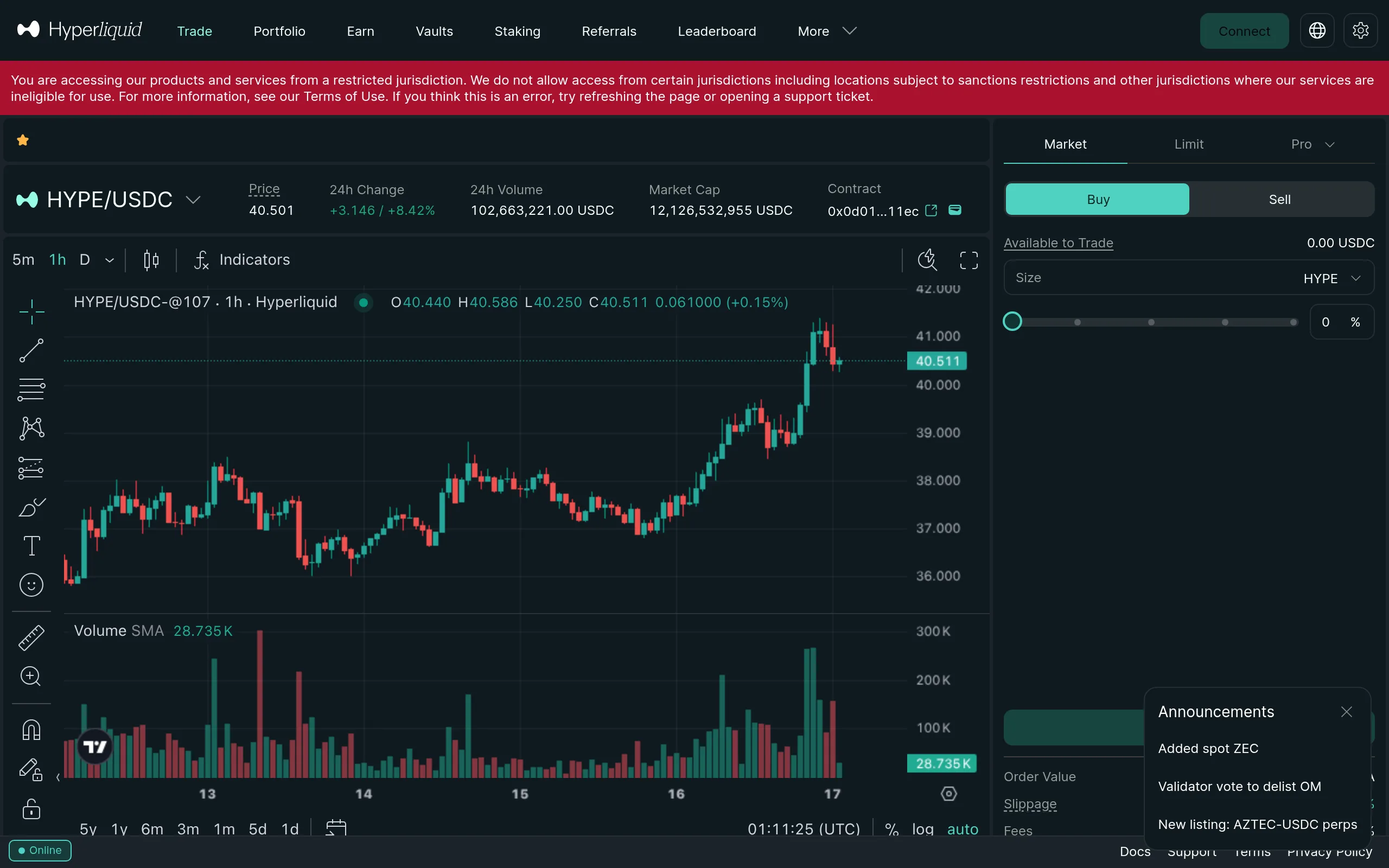
app.hyperliquid.xyz is the official web address for Hyperliquid, a decentralized perpetuals exchange that runs on its own Layer 1 blockchain. Open it in any browser, including Safari or Chrome on your phone, and you get the full trading interface: charts, the order book, order entry, and your open positions, with nothing to download. Android now has a native app too, but the site is the same on every device. You connect a self-custody wallet like MetaMask or Rabby, deposit USDC, and trade on-chain. There's no signup and no KYC, and your funds stay in your own wallet the whole time. One thing to check: the real domain is exactly app.hyperliquid.xyz, since phishing lookalikes are common. Open it through a referral link on your first visit and you lock in a 4% lifetime discount on trading fees.
Is There a Hyperliquid App for iPhone and Android?
Yes — on Android. Hyperliquid launched its official Android app on Google Play in April 2026. The app provides the full trading interface plus native push notifications for trade fills — instant alerts when your orders execute. You can download it here.
There is no iOS app yet. iPhone users should continue using the progressive web app (PWA) at app.hyperliquid.xyz, which works in Safari and can be added to your home screen for an app-like experience. The PWA supports every feature available on desktop — the same full interface that the Android app wraps natively.
How to Access Hyperliquid on Your Phone
Getting started on mobile takes less than two minutes. Here is the complete setup flow:
Open Hyperliquid in your mobile browser
Navigate to app.hyperliquid.xyz in Safari (iOS) or Chrome (Android). These are the recommended browsers for the best PWA experience.
Connect your mobile wallet
Tap Connect in the top-right corner and select your wallet. MetaMask Mobile, Rabby Mobile, Phantom, and Trust Wallet all work natively.
Deposit USDC (if needed)
If your account is not funded, tap Deposit to bridge USDC from Arbitrum into Hyperliquid. See the full deposit guide for step-by-step instructions.
Add to home screen (recommended)
Use your browser's "Add to Home Screen" option to create an app-like shortcut. This removes the browser address bar and gives you a cleaner trading experience.
Start trading
Select a market, choose your order type, set your leverage, and place your trade. Every feature works on mobile.
Start Mobile Trading
Sign up through our referral link and get a 4% lifetime fee discount on every trade - desktop or mobile.
Join HyperliquidAdding Hyperliquid to Your Home Screen
Adding the PWA to your home screen removes the browser address bar and creates a dedicated app icon. It launches in its own window, making it feel like a native app.
On iPhone (iOS Safari)
- Open app.hyperliquid.xyz in Safari (this only works in Safari on iOS - not Chrome or Firefox)
- Tap the Share button (square with an upward arrow) at the bottom of the screen
- Scroll down the share sheet and tap Add to Home Screen
- Optionally rename it to "Hyperliquid" and tap Add
- The Hyperliquid icon now appears on your home screen
Info
On Android (Chrome)
- Open app.hyperliquid.xyz in Chrome
- Tap the three-dot menu in the top-right corner
- Tap Add to Home screen (or "Install app" if Chrome detects the PWA manifest)
- Confirm the name and tap Add
- The shortcut appears on your home screen and in your app drawer
On Android, some browsers like Brave and Edge also support PWA installation through their menu.
Mobile Wallet Options
Any EVM-compatible mobile wallet works with Hyperliquid. Here are the best options, ranked by mobile trading experience:
-
MetaMask Mobile - The most popular choice. Features a built-in dApp browser that connects directly to Hyperliquid without WalletConnect. Available on iOS and Android with Face ID and fingerprint support.
-
Rabby Mobile - Clean, trader-focused interface with built-in transaction simulation. Shows you exactly what each transaction will do before you sign. Excellent security features for mobile trading.
-
 Coinbase Wallet - Separate from the Coinbase exchange app. Easy onboarding if you already have a Coinbase account, and you can transfer USDC directly from Coinbase to your wallet with minimal fees.
 -
 Phantom - Originally a Solana wallet, Phantom now supports EVM chains and works well with Hyperliquid. Sleek mobile interface and built-in browser.
 -
 Trust Wallet - Binance-backed wallet with broad token support and a built-in dApp browser. Good option for beginners.
 -
 OKX Wallet - Full-featured mobile wallet with built-in dApp browser and multi-chain support.
Tip
Connecting via WalletConnect
If your preferred wallet does not have a built-in browser - or you want to use a desktop browser extension wallet from your phone - WalletConnect bridges the gap:
- Open app.hyperliquid.xyz on your phone
- Tap Connect and select WalletConnect
- Scan the QR code with your wallet app, or copy the connection link
- Approve the connection in your wallet
WalletConnect works but adds a relay layer between your wallet and Hyperliquid. For daily mobile trading, a wallet with a built-in browser is more reliable.
Navigating the Mobile Trading Interface
Hyperliquid's mobile interface is a responsive version of the desktop platform. Everything is available, but the layout adapts to your phone's screen.
What You See on Mobile
- Top bar - Navigation between Trade, Portfolio, and other sections. Your wallet connection status and account balance are visible here.
- Market selector - Tap the current pair name (e.g., BTC-PERP) to open the full market list. You can search by name or scroll through categories.
- Chart - TradingView chart that supports pinch-to-zoom, timeframe selection, and basic indicators. Tap to expand it full-screen.
- Order panel - Below the chart. Select order type (limit, market, stop, etc.), set size and leverage, and place your trade.
- Positions and orders - Scrollable section showing your open positions, pending orders, and trade history.
Key Differences From Desktop
The mobile interface has the same functionality as desktop, but the layout is stacked vertically instead of side-by-side. Here is what changes:
- Chart and order panel are stacked - On desktop, you see the chart and order form side by side. On mobile, the order panel sits below the chart.
- Order book is collapsed by default - Tap to expand it. On a small screen, the order book takes up significant space, so it stays hidden until you need it.
- Portfolio requires navigation - On desktop, your positions are visible alongside the chart. On mobile, you may need to scroll down or switch tabs to see them.
- Multi-chart layouts are not available - Desktop users can tile multiple charts. On mobile, you work with one chart at a time.
Tips for Effective Mobile Trading
Mobile trading requires a slightly different approach than desktop. These tips will help you trade more effectively on a smaller screen.
Order Placement
- Prefer limit orders over market orders. On a small screen, it is easy to fat-finger a market order at a bad price. Limit orders give you price protection and ensure you get the rate you intended.
- Double-check leverage before confirming. The leverage selector is small on mobile. Verify your leverage setting before placing each trade, especially if you have been switching between pairs with different leverage defaults.
- Use the order confirmation dialog. Do not dismiss confirmation prompts too quickly. On mobile, the smaller tap targets make accidental taps more likely.
Security
- Enable biometric authentication on your wallet app. Both MetaMask and Phantom support Face ID and fingerprint locks. This protects your funds if your phone is lost or stolen.
- Use cellular data or a VPN - avoid public Wi-Fi when trading. See our crypto security guide for detailed mobile security practices.
- Never store your seed phrase in your phone's notes app, screenshots, or cloud storage. Write it on paper and store it offline.
Warning
Screen and Layout
- Use landscape mode for chart analysis. Rotating your phone gives you significantly more chart real estate for technical analysis.
- Bookmark key pages separately. Save direct links to the trade page, portfolio page, and deposit page for faster navigation.
- Reduce browser clutter. Close unnecessary tabs to free up memory. Hyperliquid's live data feed uses resources, and too many open tabs can slow down your phone's browser.
Limitations Compared to Desktop
While the mobile PWA is fully functional, there are practical limitations worth knowing:
| Feature | Desktop | Mobile |
|---|---|---|
| All order types (limit, market, stop, TWAP, scale) | Yes | Yes |
| Multi-chart layouts | Yes | No |
| Order book visibility | Always visible | Collapsed by default |
| Chart indicators and drawing tools | Full set | Full set (harder to use) |
| Copy trading | Yes | Yes |
| Keyboard shortcuts | Yes | No |
| Side-by-side chart + order panel | Yes | Stacked vertically |
| Notifications | Browser notifications | PWA push notifications |
For serious chart analysis, multi-pair monitoring, or rapid scalping, desktop remains the better choice. Mobile is ideal for monitoring positions, placing planned trades, managing stop-losses, and quick order adjustments when you are away from your desk.
Trade From Anywhere
Access the full Hyperliquid platform from any phone. Sign up with our referral code for a 4% lifetime fee discount.
Open HyperliquidNext Steps
With Hyperliquid set up on your phone, explore these guides to get the most out of the platform:
- Hyperliquid Android app - Download the official app for native push notifications and full trading
- How to trade on Hyperliquid - Complete trading walkthrough covering order placement, leverage, and risk management
- Order types explained - Master limit, market, stop-loss, take-profit, TWAP, and scale orders
- Leverage trading guide - Understand margin, liquidation, and how to size positions safely
- Fees explained - Learn about maker/taker fees and how our referral code saves you 4%
- Spot trading - Buy and sell tokens directly on Hyperliquid's spot markets
Frequently Asked Questions
Yes on Android, not yet on iOS. Hyperliquid publishes an official Android app on Google Play with the full trading interface and native push notifications for fills. On iPhone there is no App Store app; you use the web app at app.hyperliquid.xyz, which runs the same interface in Safari and can be added to your home screen so it opens in its own window without browser controls.
The full URL is https://app.hyperliquid.xyz. The .xyz is part of the domain, so app.hyperliquid on its own will not resolve. That address loads the official Hyperliquid trading interface on both desktop and mobile. Check the spelling before connecting a wallet, because phishing lookalikes of this domain are common.
app.hyperliquid.xyz is the official website for Hyperliquid, the decentralized perpetuals exchange. It is a web app, so there is nothing to install on iPhone: open it in Safari or Chrome, connect a wallet like MetaMask or Rabby, and deposit USDC to trade. Android users can instead install the official Google Play app. It is non-custodial with no KYC, and you should confirm the domain reads exactly app.hyperliquid.xyz before connecting to avoid phishing sites.
Hyperliquid now has an official Android app on Google Play with the full trading interface and native push notifications for fills. There is no iOS app yet. For iPhone users, Hyperliquid offers a progressive web app (PWA) at app.hyperliquid.xyz that runs in your mobile browser. You can add it to your home screen for an app-like experience with all order types and real-time charts.
On iPhone, open app.hyperliquid.xyz in Safari, tap the Share button (square with arrow), then tap Add to Home Screen. On Android, open it in Chrome, tap the three-dot menu, then tap Add to Home screen. This creates an app-like shortcut that opens without browser controls.
The most popular mobile wallets for Hyperliquid are MetaMask Mobile, Rabby Mobile, Coinbase Wallet, Phantom, and Trust Wallet. For the best experience, use your wallet's built-in dApp browser to open Hyperliquid rather than connecting from Safari or Chrome. This avoids WalletConnect issues and keeps your session active.
Yes, the mobile interface supports all core trading features including perpetual futures, spot trading, all order types (limit, market, stop-loss, take-profit, TWAP, scale orders), portfolio management, deposits, and withdrawals. The main limitations are reduced screen space for chart analysis and slightly slower navigation between sections.
Yes, mobile trading on Hyperliquid is as secure as desktop trading since you are connecting to the same platform. Enable biometric authentication (Face ID or fingerprint) on your wallet app, avoid public Wi-Fi, use a VPN when possible, and never store your seed phrase on your phone. Use limit orders to avoid fat-fingering market orders on a small screen.
Independent resource: Hyperliquid Guide is an independent, third-party resource operated by Concept211. It is not affiliated with, produced by, reviewed by or endorsed by Hyper Foundation, Hyperliquid Labs or any other Hyperliquid-ecosystem entity. "Hyperliquid" and related names and marks belong to their respective owners and are used here only to identify the platform this site documents. Read the full disclaimer.
Not advice: Nothing on this site is legal, tax, financial or investment advice. Descriptions of regulatory status, tax treatment and market availability are general information that varies by jurisdiction and changes over time. Confirm anything that matters to you with a qualified professional and against primary sources. Trading perpetual futures involves substantial risk of loss, and past performance does not indicate future results.
Disclosure: this site contains referral links. Signing up through the 4% lifetime fee discount link earns us a share of the trading fee Hyperliquid already charges, at no extra cost to you.
Ready to Start Trading?
Join Hyperliquid with our referral link and get a 4% lifetime fee discount. No KYC, no email - just connect your wallet and trade.
Start Trading - Save 4%