How to Connect Trust Wallet to Hyperliquid (Step-by-Step Guide)
Table of Contents
- Why Trust Wallet Is Ideal for Mobile Hyperliquid Trading
- Prerequisites
- Step-by-Step: Connect Trust Wallet to Hyperliquid
- Step 1: Install Trust Wallet
- Step 2: Fund Your Wallet with USDC on Arbitrum
- Connection Method 1: Mobile DApp Browser (Easiest on Mobile)
- Connection Method 2: WalletConnect QR Code (Desktop to Mobile)
- Connection Method 3: Browser Extension (Desktop)
- Apply a Referral Code (Critical - First Connection Only)
- Deposit USDC
- Which Connection Method Should You Use?
- Troubleshooting Common Connection Issues
- DApp Browser Not Available in Trust Wallet
- WalletConnect QR Code Not Scanning
- WalletConnect Keeps Disconnecting
- Trust Wallet Extension Not Detected
- Next Steps
 Trust Wallet
Why Trust Wallet Is Ideal for Mobile Hyperliquid Trading
Trust Wallet is one of the most downloaded cryptocurrency wallets in the world, with over 60 million users across iOS and Android. Acquired by Binance in 2018, it has grown into a versatile multi-chain wallet that supports thousands of assets across dozens of blockchains. What sets Trust Wallet apart is its mobile-first design - it was built from the ground up for smartphone users who want to interact with DeFi protocols on the go.
For Hyperliquid traders, Trust Wallet offers a practical advantage: you can connect, deposit, and manage your trading account from your phone without ever touching a desktop computer. Whether you use the built-in DApp browser, the WalletConnect QR method, or the newer browser extension, Trust Wallet gives you flexibility in how you access Hyperliquid.
Hyperliquid is a non-custodial exchange - your wallet is your account. No email registration, no passwords, no identity verification. Connect Trust Wallet and you are ready to trade.
Prerequisites
Before connecting Trust Wallet to Hyperliquid, make sure you have:
- Trust Wallet installed - the mobile app (iOS or Android) or the browser extension (Chrome, Brave)
- USDC on the Arbitrum network in your Trust Wallet (for depositing into Hyperliquid)
- A small amount of ETH on Arbitrum (under $1 worth, for the one-time bridge gas fee)
- A stable internet connection - especially important for WalletConnect, which requires both devices to be online
Tip
Step-by-Step: Connect Trust Wallet to Hyperliquid
1Install Trust Wallet
If you already have Trust Wallet installed, skip to Step 2.
Mobile App (Recommended):
- Download Trust Wallet from the App Store (iOS) or Google Play (Android)
- Open the app and tap "Create a new wallet"
- Accept the terms of service
- Write your 12-word recovery phrase on paper - store it somewhere secure and offline
- Confirm your recovery phrase by selecting the words in the correct order
- Set a passcode or enable biometric authentication (Face ID / fingerprint)
Trust Wallet mobile app setup screen with Create New Wallet option
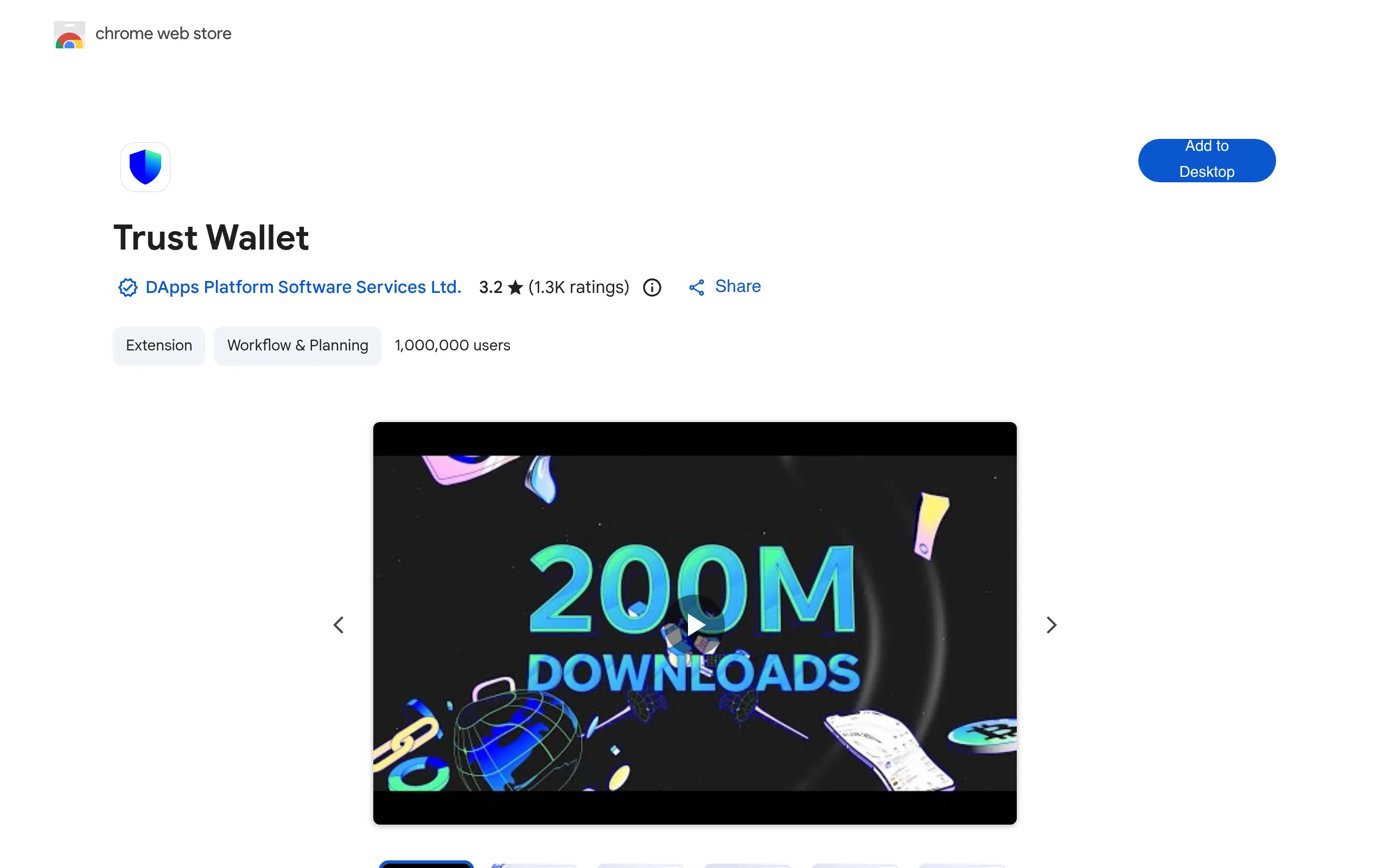
Browser Extension:
- Go to trustwallet.com/browser-extension
- Click "Download" for Chrome or Brave
- Click "Add to Browser" and confirm
- Create a new wallet or import an existing seed phrase
- Set a strong unlock password
Warning
2Fund Your Wallet with USDC on Arbitrum
You need USDC on the Arbitrum network in your Trust Wallet to deposit into Hyperliquid.
From a Centralized Exchange:
- Open your exchange (Binance, Coinbase, Kraken, etc.)
- Navigate to Withdraw
- Select USDC as the asset
- Paste your Trust Wallet address (find it by tapping "Receive" in Trust Wallet and selecting USDC or Ethereum)
- Choose Arbitrum One as the withdrawal network
- Confirm the withdrawal
Using Trust Wallet's Built-in Swap:
If you hold other tokens in Trust Wallet, you can swap them:
- Open Trust Wallet
- Tap the Swap icon
- Select the token you want to swap from and set USDC as the output
- Make sure you are on the Arbitrum network
- Review the rate and confirm
Info
Connection Method 1: Mobile DApp Browser (Easiest on Mobile)
Trust Wallet's built-in DApp browser lets you access Hyperliquid directly within the app, creating a seamless mobile trading experience.
- Open Trust Wallet on your phone
- Tap the "Browser" or "Discover" tab at the bottom of the screen
- In the browser's address bar, type app.hyperliquid.xyz and tap Go
- The Hyperliquid interface will load inside Trust Wallet's browser
- Tap the "Connect" button in the top-right corner
- Select "Trust Wallet" or "Injected" from the wallet options
- Approve the connection request that appears
- You may be asked to sign a verification message - tap "Approve"
Trust Wallet DApp browser with Hyperliquid loaded
Connection approval popup inside Trust Wallet
Info
Connection Method 2: WalletConnect QR Code (Desktop to Mobile)
If you prefer to use Hyperliquid on a desktop browser while keeping your wallet on your phone, WalletConnect bridges the two.
- Open app.hyperliquid.xyz on your desktop browser
- Click the "Connect" button in the top-right corner
- Select "WalletConnect" from the connection options
- A QR code will appear on screen
- Open Trust Wallet on your phone
- Tap the Settings icon (gear) or the scan icon (varies by version)
- Select "WalletConnect" and scan the QR code displayed on your desktop
- Review the connection request and tap "Approve"
WalletConnect QR code displayed on Hyperliquid desktop interface
Trust Wallet WalletConnect scanner on mobile
Tip
Connection Method 3: Browser Extension (Desktop)
For a fully desktop experience, use the Trust Wallet browser extension.
- Make sure the Trust Wallet extension is installed and unlocked
- Navigate to app.hyperliquid.xyz
- Click "Connect"
- Select "Trust Wallet" from the wallet list
- The extension will pop up - review the connection and click "Connect"
- Sign the verification message if prompted
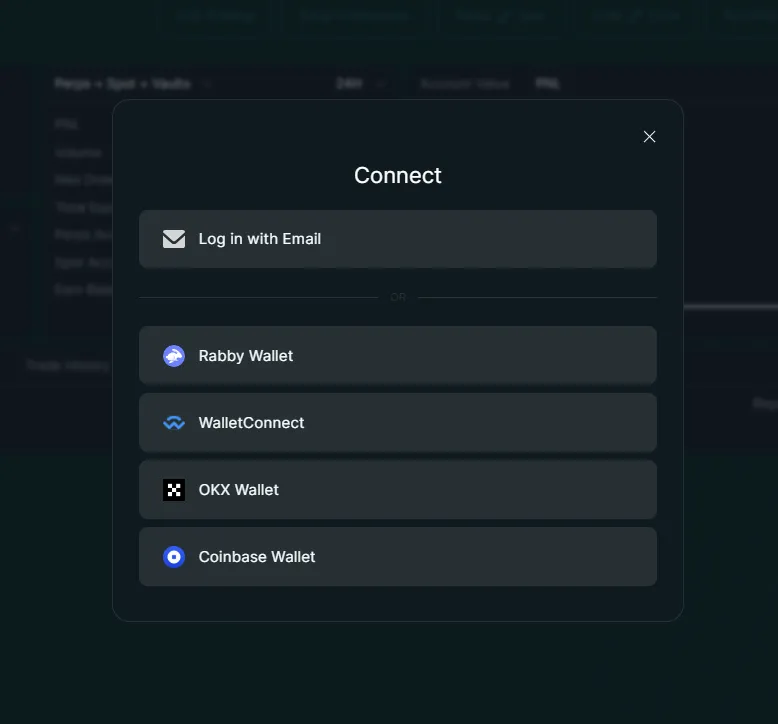
This method works identically to MetaMask - all transaction approvals happen in the browser extension popup.
First Time on Hyperliquid? Claim 4% Off Every Trade
Apply a referral code when you first connect for a permanent 4% fee discount. This opportunity only exists during your initial wallet connection.
Connect with Fee DiscountApply a Referral Code (Critical - First Connection Only)
When you connect a new wallet to Hyperliquid for the first time, you have a one-time opportunity to apply a referral code. Our code (Concept211) gives you a 4% discount on all trading fees for the lifetime of your account, up to your first $25 million in volume.
If you connected through our referral link, the code is applied automatically. If you navigated directly to app.hyperliquid.xyz, check the referral section in your account settings.
Important
Deposit USDC
With Trust Wallet connected, deposit funds to begin trading:
- Click or tap the "Deposit" button on Hyperliquid
- Enter the amount of USDC you want to deposit
- Approve the transaction in Trust Wallet (either in the extension popup or on your phone if using WalletConnect/DApp browser)
- Wait approximately 1-2 minutes for on-chain confirmation
For a detailed walkthrough, see our complete USDC deposit guide.
Which Connection Method Should You Use?
Trust Wallet offers three distinct ways to connect to Hyperliquid. Here is how to choose:
| Method | Best For | Pros | Cons |
|---|---|---|---|
| DApp Browser | Mobile-only users | Seamless, no QR code, everything in one app | Smaller screen for trading |
| WalletConnect | Desktop trading + mobile wallet | Full desktop interface, wallet stays on phone | Requires phone nearby, connection can drop |
| Browser Extension | Full desktop experience | Fastest, most familiar if you use MetaMask-style wallets | Requires installing extension |
Troubleshooting Common Connection Issues
DApp Browser Not Available in Trust Wallet
- Check your Trust Wallet version - Update to the latest version from the App Store or Google Play
- Enable the browser - Go to Trust Wallet Settings and look for a "DApp Browser" or "Discover" toggle
- iOS restrictions - On some iOS versions, Apple has required Trust Wallet to hide the DApp browser. Use the WalletConnect method instead, or navigate to Hyperliquid through the Discover tab if available
WalletConnect QR Code Not Scanning
- Increase screen brightness on the device displaying the QR code
- Make sure both devices (desktop and phone) are connected to the internet
- If the QR code expired, close the connection modal and reopen it for a fresh code
- Clean your phone's camera lens if the scanner is not focusing
WalletConnect Keeps Disconnecting
WalletConnect sessions can be fragile on mobile:
- Keep Trust Wallet open in the foreground on your phone while trading
- Disable battery optimization for Trust Wallet in your phone's settings (this prevents the OS from killing the app in the background)
- If the connection drops, click "Connect" on Hyperliquid again and re-scan a new QR code
- Consider switching to the browser extension for a more stable desktop experience
Trust Wallet Extension Not Detected
- Check the extension is installed and unlocked - Click the Trust Wallet icon in your browser toolbar
- Disable competing wallet extensions - MetaMask, Rabby, or Phantom may intercept the connection. Temporarily disable them
- Refresh the page - Sometimes a simple refresh resolves detection issues
- Try the WalletConnect fallback - If the extension is not being detected, use WalletConnect as an alternative
Trust Wallet Connected? Start Trading with a Discount
Hyperliquid delivers zero gas on trades, sub-second execution, and no KYC. Add our 4% fee discount for the lowest possible trading costs.
Start Trading - Save 4%Next Steps
Once your Trust Wallet is connected to Hyperliquid:
- Deposit USDC - Bridge funds from Arbitrum into your Hyperliquid trading account
- Place your first trade - Follow our complete trading guide from deposit to first position
- Trade on your phone - Complete mobile trading guide - Trust Wallet's DApp browser makes it one of the best mobile options
- Learn about bridging options - Explore different ways to move funds onto Hyperliquid
Frequently Asked Questions
Yes. Trust Wallet is a mobile-first wallet. You can connect to Hyperliquid either through Trust Wallet's built-in DApp browser or by using WalletConnect to scan a QR code from a desktop browser. Both methods work well.
Yes. Trust Wallet launched a browser extension for Chrome and Brave. If you prefer connecting from a desktop browser, install the Trust Wallet extension and connect just like you would with MetaMask - click Connect on Hyperliquid and select Trust Wallet.
Yes. Trust Wallet is a self-custody wallet - you hold your own private keys. Connecting to Hyperliquid only shares your public address. Hyperliquid cannot access your private keys or move funds without your explicit approval for each transaction.
Make sure you are using Trust Wallet's built-in DApp browser (not your phone's regular browser). If using WalletConnect, ensure both devices are on the internet and the QR code has not expired. On desktop, check that the Trust Wallet extension is installed and no other wallet extensions are intercepting the connection.
Independent resource: Hyperliquid Guide is an independent, third-party resource operated by Concept211. It is not affiliated with, produced by, reviewed by or endorsed by Hyper Foundation, Hyperliquid Labs or any other Hyperliquid-ecosystem entity. "Hyperliquid" and related names and marks belong to their respective owners and are used here only to identify the platform this site documents. Read the full disclaimer.
Not advice: Nothing on this site is legal, tax, financial or investment advice. Descriptions of regulatory status, tax treatment and market availability are general information that varies by jurisdiction and changes over time. Confirm anything that matters to you with a qualified professional and against primary sources. Trading perpetual futures involves substantial risk of loss, and past performance does not indicate future results.
Disclosure: this site contains referral links. Signing up through the 4% lifetime fee discount link earns us a share of the trading fee Hyperliquid already charges, at no extra cost to you.
Ready to Start Trading?
Join Hyperliquid with our referral link and get a 4% lifetime fee discount. No KYC, no email - just connect your wallet and trade.
Start Trading - Save 4%