How to Connect Phantom Wallet to Hyperliquid (Step-by-Step Guide)
Table of Contents
- Why Phantom Users Trade on Hyperliquid
- Prerequisites
- Step-by-Step: Connect Phantom Wallet to Hyperliquid
- Step 1: Install Phantom (If Needed)
- Step 2: Make Sure Ethereum Is Turned On
- Step 3: Set Phantom as the Default App Wallet (If You Run Other Wallets)
- Step 4: Connect to Hyperliquid
- Step 5: Enable Trading and Apply a Referral Code
- Step 6: Fund Your Account Without Arbitrum
- Withdrawing to Phantom: Read This First
- If Phantom Won't Connect
- Phantom Referral Code vs. the Hyperliquid Referral Code
- Next Steps
 Phantom
Why Phantom Users Trade on Hyperliquid
Phantom started out as a Solana wallet and now covers several chains. Its help center lists Solana, Ethereum, Base, Polygon, BNB Chain, Bitcoin, HyperEVM and a few others as supported networks. If you already have it installed, it works as an alternative to MetaMask on Hyperliquid.
Two details matter before you start. Hyperliquid logs you in with Phantom's Ethereum-format address (the one that starts with 0x), not your Solana address. And Phantom does not support Arbitrum, which is the network Hyperliquid uses for its standard USDC deposits and for withdrawals. Neither one stops you from trading. They just change how you fund the account and how you take money out, and both are covered below.
Hyperliquid is non-custodial: your Phantom wallet is your account. There is no sign-up form and no email step when you connect a wallet.
Prerequisites
Before connecting Phantom to Hyperliquid, make sure you have:
- The Phantom browser extension, updated to the latest version
- Ethereum turned on in Phantom (Step 2 below)
- Something to fund the account with: SOL in your Phantom Solana account, or USDC on Ethereum, Base, or Solana that you can bridge in (Step 6)
- A desktop browser such as Chrome, Brave, Firefox, or Edge
Info
Step-by-Step: Connect Phantom Wallet to Hyperliquid
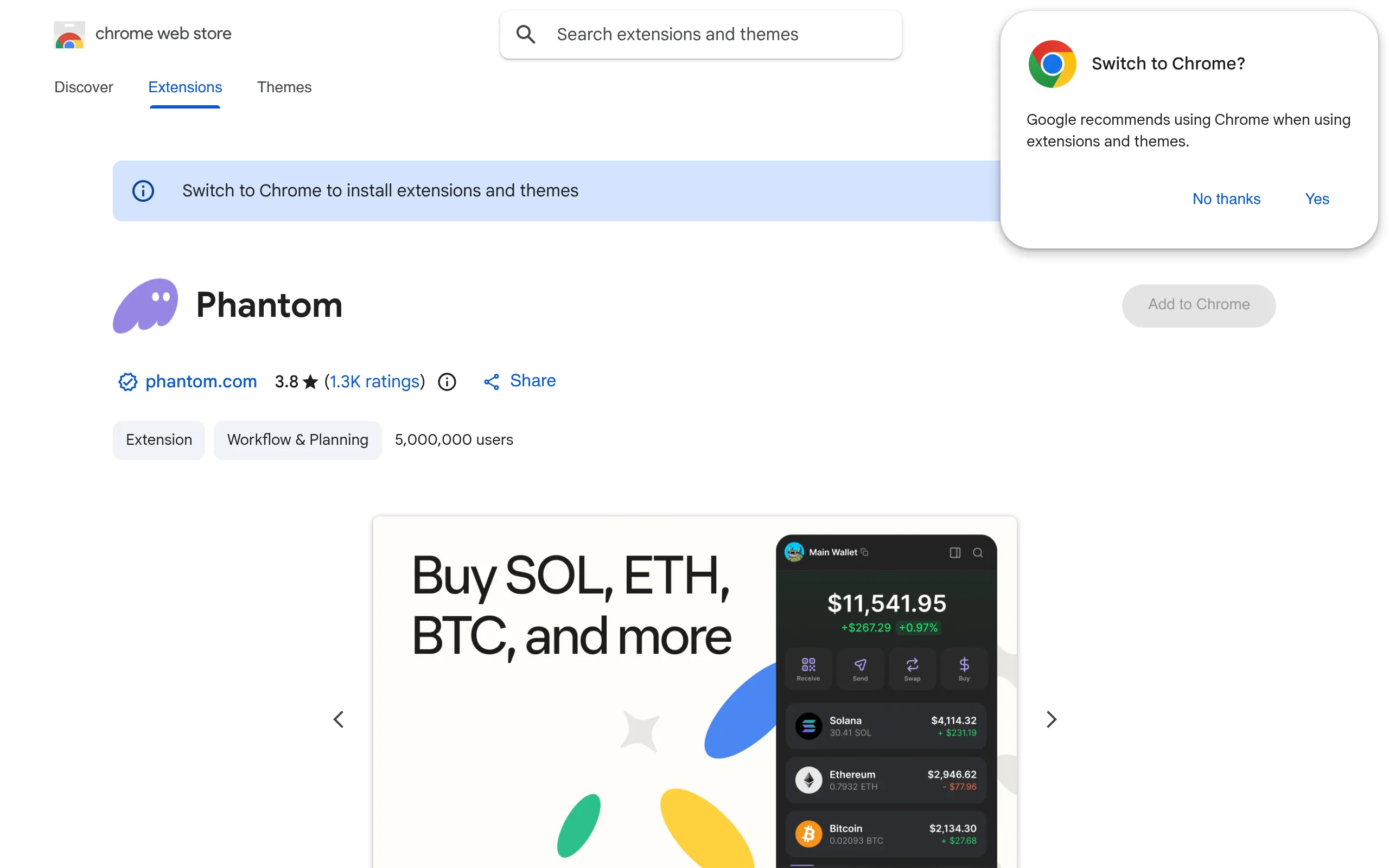
1Install Phantom (If Needed)
If Phantom is already installed, skip to Step 2.
- Go to phantom.com/download
- Pick your browser and add the extension
- Phantom opens a setup page. Choose Create a new wallet or I already have a wallet
- If you are creating a new wallet, write your recovery phrase on paper and keep it offline
- Set a strong unlock password
Warning
2Make Sure Ethereum Is Turned On
Older guides (including an earlier version of this one) told you to flip a network selector from Solana to Ethereum. Current Phantom does not work that way. It shows assets from every network you have enabled in one view, and each account already has an Ethereum address alongside its Solana one. You only need to confirm Ethereum is on:
- Open Phantom and click your profile avatar in the upper left
- Go to Settings > Active networks
- Check that Ethereum is toggled on. Turn on HyperEVM too if you plan to use HyperEVM apps later
Phantom Settings Active networks screen with Ethereum turned on
Your Ethereum address starts with 0x. Phantom notes that Ethereum, Base, Polygon and HyperEVM addresses all share this format, while your Solana address looks completely different. When you connect to Hyperliquid, the 0x address is the one that becomes your trading account.
Phantom wallet showing the account's 0x Ethereum address
3Set Phantom as the Default App Wallet (If You Run Other Wallets)
Browser wallets compete for the same connection slot on EVM sites, so with MetaMask also installed, the wrong wallet can answer. Phantom's help center describes the fix in its article on using Phantom alongside other wallets:
- Open Phantom and click your profile avatar
- Go to Settings > Preferences
- Under Default App Wallet, choose Phantom, or Always Ask if you want to pick each time
- Hard refresh the Hyperliquid tab with
Ctrl + Shift + R(Windows) orCmd + Shift + R(Mac). A normal refresh can keep using the previous wallet
If Phantom is your only wallet extension, you can skip this step.
4Connect to Hyperliquid
- Go to app.hyperliquid.xyz
- Click Connect in the top-right corner
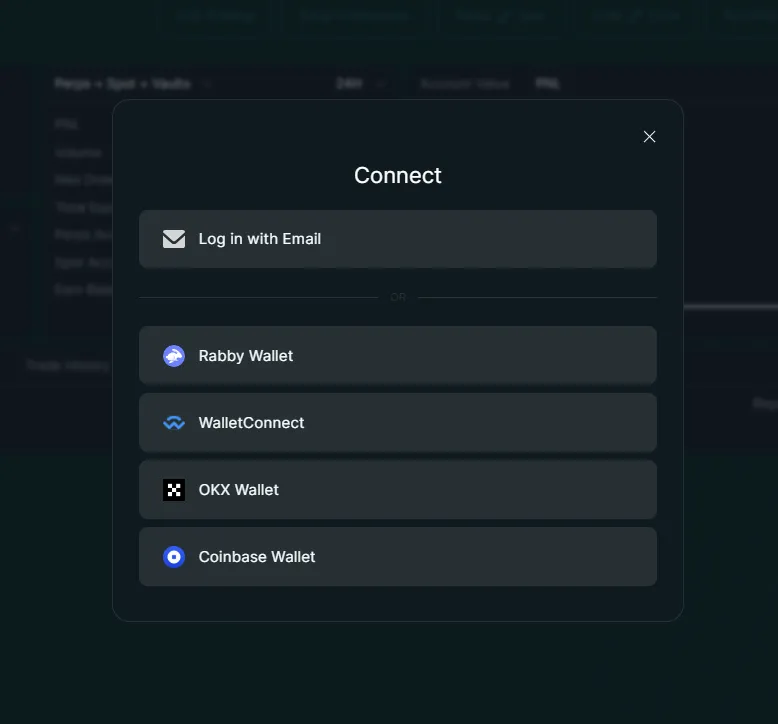
- Pick Phantom from the wallet list. If it is not listed by name, Phantom's own guidance on using Phantom with EVM apps is to choose the MetaMask or "Browser wallet" option, which Phantom answers when it is your default
- Phantom shows a connection request. Check that the site is
app.hyperliquid.xyzand click Connect
Phantom popup showing connection request for app.hyperliquid.xyz
Your 0x address now appears in the top-right corner of Hyperliquid.
5Enable Trading and Apply a Referral Code
Hyperliquid's onboarding docs list one more step after connecting. Click Enable Trading, and Phantom pops up asking you to sign a gas-less request. Click Sign. This is a signature, not an on-chain transaction, so it costs nothing.
This is also the moment to lock in a referral code, before your first deposit and trade. Our code (Concept211) gives you 4% off your trading fees on your first $25M of volume. If you opened Hyperliquid through our referral link, the code is applied for you. Otherwise, enter it on the Referrals page in the Hyperliquid app.
Important
New to Hyperliquid? Claim 4% Off Trading Fees
Connect Phantom through our referral link and the 4% discount applies to your first $25M of volume. It has to be set before you start trading.
Connect with Fee Discount6Fund Your Account Without Arbitrum
On most wallets this step is "deposit USDC from Arbitrum." With Phantom that route is closed, because Phantom lists Arbitrum as unsupported and you cannot add a custom network to Phantom. Hyperliquid's own support FAQ on Phantom wallets says the same thing. You have three options:
- Deposit SOL from your Phantom Solana account. Hyperliquid accepts SOL and several Solana tokens as direct deposits through Unit. Click Deposit, choose SOL, and send it from Phantom to the Solana address Hyperliquid shows. Then sell the SOL for USDC on Hyperliquid spot to get trading collateral. Hyperliquid's FAQ sets a $10 minimum for that sale.
- Bridge USDC from Ethereum, Base, or Solana. Phantom supports those networks, and cross-chain bridges such as Across can deliver USDC straight into your Hyperliquid account. Our bridging guide covers the routes and fees.
- Use a wallet that supports Arbitrum. Hyperliquid's FAQ suggests exporting your Phantom Ethereum private key into a wallet like Rabby and depositing Arbitrum USDC from there. It is the same account, but importing a key into a second wallet widens its exposure, so weigh that first.
Once you have USDC on Arbitrum in another wallet, our USDC deposit guide walks through the standard deposit.
Withdrawing to Phantom: Read This First
Hyperliquid sends USDC withdrawals to Arbitrum. Phantom cannot display Arbitrum, so a USDC withdrawal to your Phantom address will look like it never arrived. According to Hyperliquid's FAQ, the funds are not lost. They sit at your 0x address on Arbitrum.
To reach them, follow Phantom's steps for recovering tokens sent to an unsupported network: export the private key for that account, import it into a wallet that supports Arbitrum, and move the funds to an exchange or wallet that can send them back to Phantom on a network it supports. Phantom also suggests moving the funds to a new Phantom account afterward.
To skip that detour, buy SOL on Hyperliquid spot and withdraw it through Unit to your Phantom Solana address. Our withdrawal guide explains how withdrawals and their fees work.
If Phantom Won't Connect
Most Phantom connection problems fall into one of these cases. Our wallet connection troubleshooting guide covers each one in more depth.
- Nothing pops up. Phantom may be locked. Click the extension icon and enter your password, then click Connect again. Also check the address bar for a blocked-popup icon and allow popups for
app.hyperliquid.xyz. - MetaMask or another wallet opens instead. Set Default App Wallet to Phantom (Step 3) and hard refresh. If the other wallet still wins, disable every wallet extension except Phantom, or use a separate browser profile, which is what Phantom recommends if you use both regularly.
- Hyperliquid asks you to switch to Arbitrum. Phantom cannot make that switch, because Arbitrum is not one of its networks. You do not need it to trade. Connecting and the Enable Trading signature work without it. The request usually comes from the Arbitrum deposit screen, so use one of the funding routes in Step 6 instead.
- The connection times out or fails. Refresh and try once more. Then try without your VPN, since some VPNs and firewalls interfere with the connection Hyperliquid's site keeps open, and check that you are not on a network that blocks it (some work and school networks do).
- Hyperliquid shows the wrong address, or an old session. Disconnect on Hyperliquid, remove
app.hyperliquid.xyzfrom Phantom's connected apps, clear the site data forapp.hyperliquid.xyz, and connect again. An incognito window with only Phantom enabled is a quick way to test. - Your Ethereum address is missing. Check Settings > Active networks and turn Ethereum on (Step 2). Phantom says a Ledger account only shows EVM addresses once you connect those networks for it.


Phantom Referral Code vs. the Hyperliquid Referral Code
A "Phantom referral code" can mean two different things, and only one of them applies on Hyperliquid's site.
Phantom's referral program belongs to Phantom. Its referral program terms (last updated August 19, 2026) describe a rebate for new users on fees from qualifying trades made through Phantom's own software, paid to their Phantom Cash balance. Phantom gives the code to eligible users, and it can only be entered at sign-up. The terms do not list the percentages; they say those appear in the Phantom app and can change. That program covers trading inside Phantom.
The Hyperliquid referral code applies when you connect Phantom to Hyperliquid's own site, which is what this guide covers. Code Concept211 gives you 4% off your trading fees on your first $25M of volume. It is set once per account, so apply it before your first trade (Step 5). The referral page explains how it works.
Warning
Phantom Connected? Trade with a 4% Fee Discount
Hyperliquid charges no gas on trades and offers up to 40x leverage on its top market. Our referral code takes 4% off fees on your first $25M of volume.
Start Trading and Save 4%Next Steps
Once Phantom is connected to Hyperliquid:
- Bridge funds in: compare the routes from Ethereum, Base, and Solana
- Place your first trade: follow the full walkthrough from funding to first position
- Trade on mobile: open Hyperliquid in your wallet's built-in browser on your phone
- Understand trading fees: maker and taker rates, and how to lower them
- Add HyperEVM to a wallet: only needed for HyperEVM DeFi apps, never for trading. Phantom already lists HyperEVM as a built-in network, so turn it on under Active networks instead of entering a chain ID
Frequently Asked Questions
No. Phantom's help center lists Arbitrum among the networks it does not support, and you cannot add custom networks to Phantom manually. That matters because Hyperliquid's standard USDC deposit and every USDC withdrawal use Arbitrum. You can still connect Phantom and trade; fund the account with a SOL deposit or a cross-chain bridge instead, and see the withdrawal section of this guide before you withdraw.
Not to log in. Hyperliquid accounts are Ethereum-format (0x) addresses, so Phantom connects with its Ethereum address. Your Solana address is still useful for funding: Hyperliquid accepts SOL and some Solana tokens as deposits, which you can then sell for USDC on spot.
They are two separate programs. Phantom runs its own referral program for trading inside the Phantom app, and its terms say eligible users receive a code that can only be entered at sign-up. The Hyperliquid referral code applies when you trade on app.hyperliquid.xyz: code Concept211 gives 4% off your trading fees on your first $25M of volume. If you connect Phantom to Hyperliquid's own site, the Hyperliquid code is the one that applies.
Not when you connect Phantom to app.hyperliquid.xyz and trade there; you pay Hyperliquid's normal fees. Trading perps inside the Phantom app is different: Phantom's help center lists a 0.05% Phantom fee on top of Hyperliquid's 0.045%, for 0.095% per trade.
Open Phantom, go to Settings > Preferences, and set Default App Wallet to Phantom (or Always Ask). Then hard refresh app.hyperliquid.xyz with Ctrl+Shift+R or Cmd+Shift+R, because a normal refresh can keep using the old wallet. If it still picks MetaMask, disable the other wallet extensions or use a separate browser profile.
Yes. Each Phantom account includes addresses on every supported network, all backed up by the same Secret Recovery Phrase. Your Solana and Ethereum addresses look different, but one phrase restores both. Accounts added from an imported private key or a Ledger have their own backup.
Independent resource: Hyperliquid Guide is an independent, third-party resource operated by Concept211. It is not affiliated with, produced by, reviewed by or endorsed by Hyper Foundation, Hyperliquid Labs or any other Hyperliquid-ecosystem entity. "Hyperliquid" and related names and marks belong to their respective owners and are used here only to identify the platform this site documents. Read the full disclaimer.
Not advice: Nothing on this site is legal, tax, financial or investment advice. Descriptions of regulatory status, tax treatment and market availability are general information that varies by jurisdiction and changes over time. Confirm anything that matters to you with a qualified professional and against primary sources. Trading perpetual futures involves substantial risk of loss, and past performance does not indicate future results.
Disclosure: this site contains referral links. Signing up through the 4% lifetime fee discount link earns us a share of the trading fee Hyperliquid already charges, at no extra cost to you.
Ready to Start Trading?
Join Hyperliquid with our referral link and get a 4% lifetime fee discount. No KYC, no email - just connect your wallet and trade.
Start Trading - Save 4%